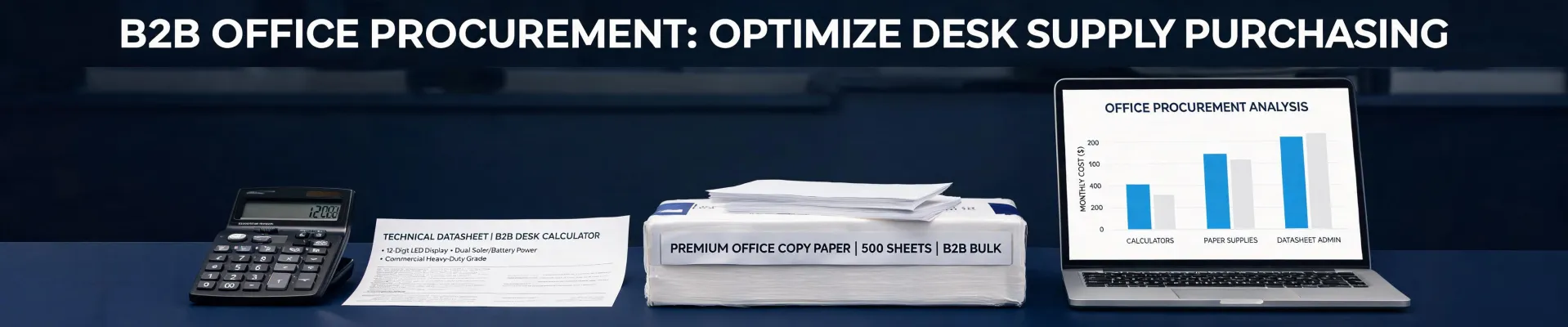
If you buy office equipment for a company of any size, the fastest way to start a small disaster is to order by product name without checking the job it has to do. My rule after five years of handling purchasing for a 240-person office is simple: never order a calculator, printer paper, or printer until you've confirmed three things—the task it has to do, the paper or consumables it takes, and how it will be set up. That 10-minute check has kept roughly $2,300 out of the return-and-reorder cycle since 2023.
I'm not saying this from some high-level procurement perch. I'm the office administrator who actually places these orders and then hears about it when something doesn't fit. I process about seventy orders a year across eight vendors, and I report to both operations and finance, so my process errors have a wide audience.
Take it from someone who has sent the “please send this back” email more than once: the right time to check anything is before you click order, not after the package arrives.
Why I stopped trusting order descriptions
The lesson started with a request that looked completely harmless. In September 2023, an office manager asked for “20 casio basic calculators” for a growing team. We already carried a display-only Casio calculator, so I ordered twenty of those and moved on.
Ten of them came back.
The accounts payable team didn't just need something that adds numbers. They needed a printed tape to attach to their vouchers and approval records. The model they asked for by name was the Casio HR-8RCE calculator—a compact printing calculator that leaves a paper trail. The display-only units were fine at the front desk. They were exactly wrong for A/P.
The mistake cost us return shipping, a restocking fee, and a conversation with finance that I'd rather not repeat. What it taught me was more useful: “casio basic calculator” is an aisle, not a model. The category name doesn't tell you whether a user needs a printed record, solar power, or a tax-rate key.
Was the original Casio calculator a bad product? No. It was our ordering process that was incomplete. That distinction matters. If I blamed the product, I'd make the same mistake again with a different brand.
Casio calculators: ask about the work first
Now when a request says “Casio calculator,” I start with the output. If the user needs a paper record, a printing calculator like the Casio HR-8RCE goes on the shortlist. If they're only checking numbers quickly, a display-only Casio basic calculator is cheaper and perfectly fine.
One thing I learned the hard way: “basic” does not mean one-size-fits-all. A basic calculator isn't graphing or programmable, but it can still differ in power source, key layout, and whether it prints. Those differences decide whether the device gets used or ignored.
When someone requests a basic Casio calculator, I check:
- Paper trail or not? If yes, pick a printing model. If no, display-only is usually enough.
- Where will it live? Is an outlet nearby, or does it need battery power? This matters more than the brand.
- Which functions do they actually use? If nobody touches tax keys, don't order them. If finance says they need to see the tape, listen.
- Consumables. A printing calculator needs compatible paper rolls. Add the roll to the same purchase order, or you'll have a fine machine with nothing to print on.
I don't memorize every spec. I check the spec sheet before ordering. That's the whole point. The uncomfortable truth is that the right basic model for one department can be the wrong basic model for the next. That's not a criticism of Casio. That's what a broad product line looks like.
Printer paper size: the trap that looks too obvious to check
Paper is the purchase most people refuse to double-check because it seems impossible to get wrong. During our 2024 office move, a well-meaning assistant looked at the old purchase orders, saw legal-size paper in the purchase history, and ordered cases of Legal for printers that only accepted Letter. We caught it before the boxes went to the floor, but only because someone took the time to open a printer tray and read the size guide.
The printer paper size question is not about memory. It's about the tray. According to US standard paper sizes, Letter is 8.5 × 11 inches, Legal is 8.5 × 14 inches, and Tabloid is 11 × 17 inches. But the real lesson is simpler: the machine tells you what it accepts. The guide is printed on the tray or in the manual. A 20-second check beats a wasted case of paper.
That same logic applies to devices beyond regular printers. If you're buying something with a paper feed, a tray, or a consumable, you verify the format first. Otherwise you're guessing with a purchase order.
What a Bambu Lab 3D printer taught me about new categories
Last year, engineering asked for a Bambu Lab 3D printer. The request itself was clean. But in the internal comments, someone wrote “Bamboo Labs 3D printer,” and that version started spreading through the office. A tiny spelling detail, and suddenly the request didn't look confident.
Not a monthly purchase. Not an impossible one, either.
I don't know 3D printers as well as I know office supplies, so I asked the same verification questions I use for calculators: What will the team print? What material does it consume? Who will maintain it? The engineering lead explained the parts they designed, the filament they wanted, and the build volume they needed. The product decision got easier after that. I didn't have to be the expert on 3D printers. I just had to refuse to guess.
After that purchase, I added one line to my mental checklist: if you can't explain the workflow, you can't order the equipment.
How to scan a document from printer to computer
“How to scan a document from printer to computer” is one of those questions every office asks. In my experience, the scanner hardware is rarely broken. The software side just didn't get set up.
Once the printer is on the same Wi-Fi or Ethernet network as your computer, the process is straightforward:
- Install the manufacturer's driver and scanning utility—or use your operating system's built-in scan tool like Windows Scan or macOS Image Capture.
- Place the document on the glass or in the automatic document feeder.
- Select the scanner, choose PDF or JPEG, pick a destination folder, and click Scan.
If the scan button doesn't show up, check two things first: the network connection and whether the full driver package was installed. It's almost always one of those.
For purchasing, though, the prevention angle is better: if the office needs to scan, make sure the printer you order can actually scan, and put scan-to-PC setup on the installation checklist. Otherwise “how to scan a document from printer to computer” becomes a weekly search, and you'll be the one getting the email.
Don't let a checklist become bureaucracy
To be fair, not every order deserves ten minutes of investigation. If someone asks for a Casio basic calculator for occasional desktop arithmetic, the right answer is usually “fine, order the straightforward model.” Over-thinking small purchases just annoys your coworkers.
But if the purchase involves a paper feed, a supply roll, or software setup, slow down. You'll spend more time returning the wrong thing than checking the right specifications beforehand. Five minutes of verification beats five days of correction.

Elena Baptista
Elena Baptista is an office printing and imaging analyst covering laser and inkjet printers, multifunction devices, copiers, label and receipt printers, ink cartridges, toner cartridges, and drum units. She applies ISO/IEC 24734, ISO/IEC 24711, and ISO/IEC 19798 methods while comparing print speed, first-page time, duplex throughput, duty cycle, page yield, coverage assumptions, resolution, color consistency, energy use, and maintenance intervals. Her guides help offices, schools, dealers, and procurement teams match output volume, media handling, connectivity, consumable economics, service access, and fleet-management requirements.